Some times you just want to listen rather than read ,with this app you can convert text to mp3
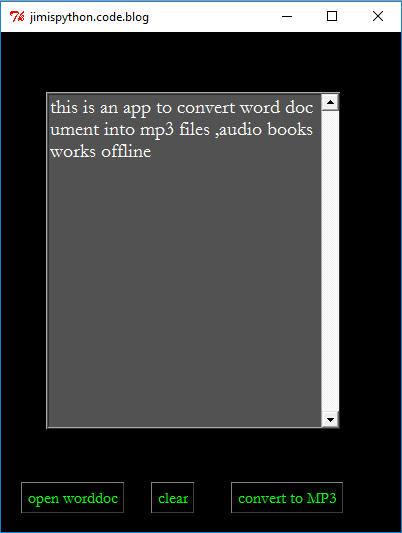
It works offline and its based on the python text to speech library pyttsx3
Pip install pyttsx3
First we import the necessary libarries
Tkinter for GUI
Pyttsx3 for text to mp3 conversion
Docx to get all texts from a word document
Pip install docx
#import tkinter for gui
from tkinter import *
# import pyttsx3 to convert text to mp3
import pyttsx3
#from tkinter messagebox to show messages and filedialog to open files
from tkinter import messagebox, filedialog
#import os important in parsing through directories
import os
#import word docx to get text from worddocument
import docx
#initialize pyttsx3 as saver which will save the text to mp3
initialize pyttsx3 as saver which will save the text to mp3
Then create the main tkinter window and give it a size,color and set its title
#initialize pyttsx3 as saver which will save the text to mp3
saver=pyttsx3.init()
#create the main app window and name it mainwindow
mainwindow=Tk()
#set the size of the mainwindow
mainwindow.geometry("400x500")
#set background colour of mainwindow to black
mainwindow.config(bg="black")
#set app title to pythonpal.code.blog
mainwindow.title('jimispython.code.blog')
Define the function to convert text to mp3
Create a top window in it
Define a secondary function which gets the text from the text box and converts it into mp3
#function to convert text into mp3
def text_to_mp3():
    def save_to_mp3():
        #get all the texts from the text box
        text=textbox.get('1.0','end')
        #get the filename to save as
        file=entry.get()
        #finally use save to save file to mp3 giving it the text and filename to save as
        saver.save_to_file(text,file)
        #let the saver run until it has finised saving
        saver.runAndWait()
        #then show  a message if file is successfully saved
        messagebox.showinfo('save','mp3 successfully saved ')
    #create  a small window to save mp3 file name
    save=Toplevel()
    save.config(bg='black')
    lab1=Label(save,text='enter name of file',bg='black',fg='lime').pack()
    #create a tkinter variable to be attached to entry
    entry=StringVar()
    ent1=Entry(save,textvariable=entry).pack()
    #button to save text to mp3 by calling the save_to_mp3 function
    but=Button(save,text='save',bg='black',fg='lime',command=save_to_mp3).pack()
A function to open word documents and get the text from them
#funtion to open word document and to parse it to get text
def openfile():
    global textt
    #open file dialogue to select file
    filelocation= filedialog.askopenfilename(initialdir="%")
    #use docx to open to open the document in that location
    doc=docx.Document(filelocation)
    #parse the doc for all the paragraphs (texts)
    for i in doc.paragraphs:
        textt=textt+i.text
    #then insert the text from the doc into the text box
    textbox.insert('1.0',textt)
Define a function to clear the textbox of any text
#function to clear text box of any text
def clear():
    textbox.delete('1.0','end')
create a variable called textt to hold texts
Create a tkinter frame where your going to put your scrollbar
Create a scrollbar which you will attach to text box to scroll the text in it
Create a text box and attach the scroll bar to it
Create buttons to call respective functions upon user pressing it
Mainloop to keep the application running
#create a variable called textt to hold texts
textt=''

#create a frame to hold textbox
frame2=Frame(mainwindow,relief=RAISED,borderwidth=2,bg='#535353')
#create scroll bar important for scrolling text in textbox
scrolbar=Scrollbar(frame2)
#put the scroll bar into the right side of the frame
scrolbar.pack(side=RIGHT,fill=Y)
#create textbox and insert it into the frame
textbox=Text(frame2,yscrollcommand = scrolbar.set,font=('garamond',15),height=15,width=30,bg='#535353',fg='white')
textbox.pack(fill=X)
#attach the scroll bar to function on the text of the created textbox and scroll should be on the y side or grid
scrolbar.config( command = textbox.yview)
#now put the frame into the mainwindow
frame2.place(x=45,y=60)
#creat buttone to convert text to mp3 and it should call the text_to_mp3 function as command
but1=Button(text="convert to MP3",bg='black',fg='lime',font='garamond',command=text_to_mp3).place(x=230,y=450)
#create button to open word document and it should call the openfile fucntion
but2=Button(text='open worddoc',bg='black',fg='lime',font='garamond',command=openfile).place(x=20,y=450)
#create button to clear the text box incase user wants to open new file
but2=Button(text='clear',bg='black',fg='lime',font='garamond',command=clear).place(x=150,y=450)
#initiate the tkinter mainloop of the application
#thank you.......
mainwindow.mainloop()
Its time for you to tell me what you think about this application


 Jimis Python
One response to “Python tkinter app to convert word documents into mp3 files offline”
its a gud application i love how its explained also make power point and to mp3
LikeLike